What to say to a voice calculator
Most problems people have with voice calculators come down to wording. This page lists the words Simple Voice Calculator listens for, shows how a few tricky cases work, and covers what to do when it mishears you.
Updated · Vito Software, maker of Simple Voice Calculator
On this page
The short version
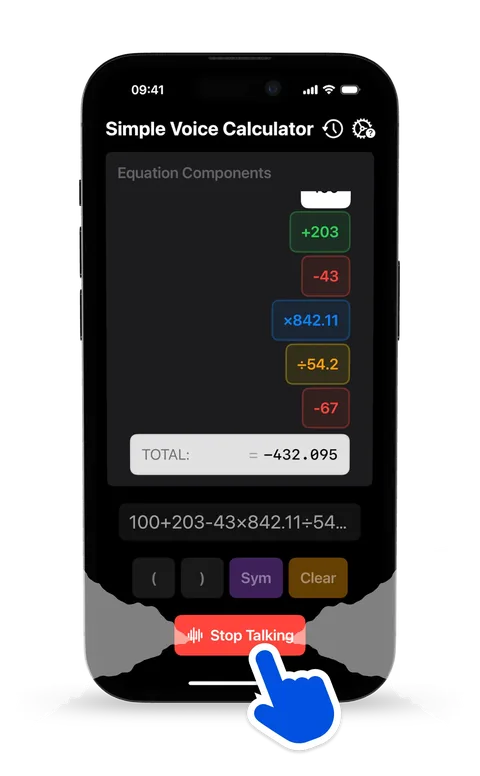
- Open Simple Voice Calculator and tap the microphone. The first time, allow access to the microphone and to Speech Recognition when iOS asks.
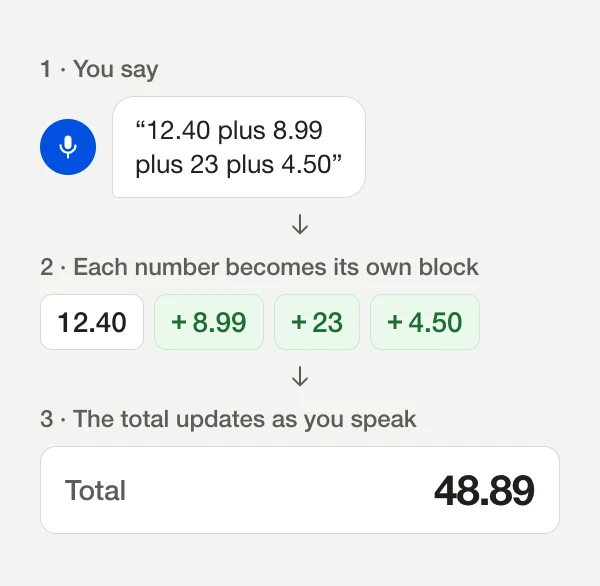
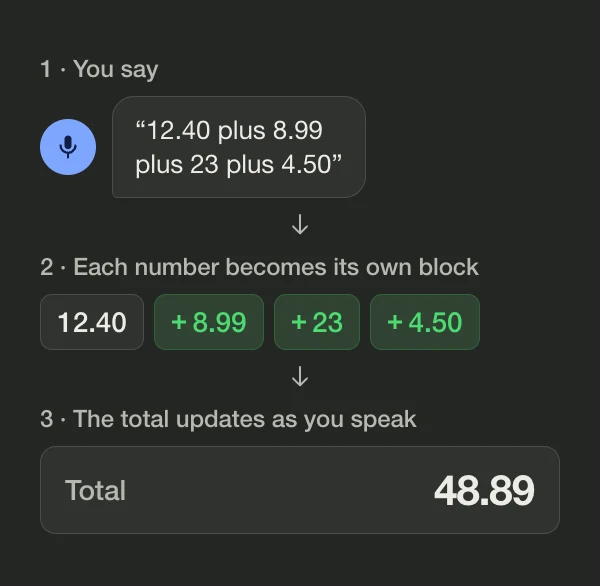
- Read the calculation out loud: 12.40 plus 8.99 plus 23 plus 4.50
- Watch the numbers appear as separate blocks while the total updates. Here it reaches 48.89.
- Say stop when you're done, or tap the microphone again.
- If you want the answer read to you, turn on Announce Total in the app's Settings. It's off by default.
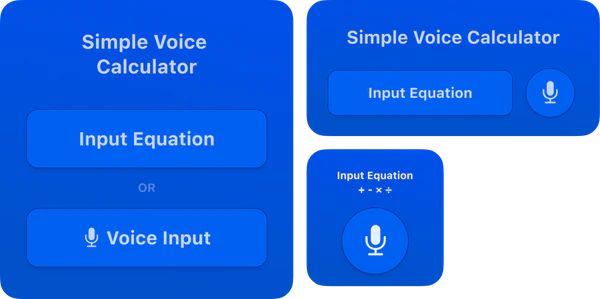
You can also start from the Home Screen with the Simple Voice Calculator widget. Tap the small widget, or the microphone on the medium or large one, and the app opens already listening. On the medium and large widgets, Input Equation opens it ready for typing instead.
Words the app listens for
These are the English words. Anything not in this list is ignored, which is why filler like "um" or "and then" doesn't break a calculation.
| To | Say | Example |
|---|---|---|
| Add | plus, add | 120 plus 45 |
| Subtract | minus, subtract | 300 minus 72.50 |
| Multiply | times, multiply, multiply by, multiplied by, of | 6 times 12.99 |
| Divide | divided by, divide by, divide, over | 1,440 divided by 12 |
| Percent | percent | 20 percent of 85 |
| Decimal point | point, dot, decimal | 3 point 75 |
| Open and close parentheses | open bracket, left bracket, open parenthesisclose bracket, right bracket, close parenthesis | open bracket 4 plus 6 close bracket times 3 |
| Finish | stop, done, finish, end | stop |
| Start over | clear | clear |
You can say numbers normally ("two hundred forty"). Negative numbers work, and a number right before a bracket is multiplied, so "5 open bracket 3 close bracket" gives 15.
Three things that trip people up
1. Multiplication happens before addition
5 plus 3 times 2 is 11, not 16. The app follows the usual order of operations: multiply and divide first, then add and subtract. If you mean "add first", say the brackets: open bracket 5 plus 3 close bracket times 2 gives 16.
2. "Percent" on its own means "divided by 100"
15 percent is 0.15, so 80 plus 15 percent gives 80.15. That isn't what a desk calculator does. To add 15% to 80, say what you actually mean:
- 80 plus 15 percent of 80 gives 92
- 80 times 1.15 also gives 92
- 80 minus 20 percent of 80 gives 64, the price after a 20% discount
- 18 percent of 64 gives 11.52, an 18% tip on a $64 bill
3. Money is read as decimals
Words like dollars, euros, pounds and yen are ignored, so 46.85 dollars plus 20 dollars works. What doesn't work is "forty-six dollars and eighty-five cents", because the app can't tell that the 85 belongs after the decimal point. Say 46 point 85 instead.
Fixing a misheard number
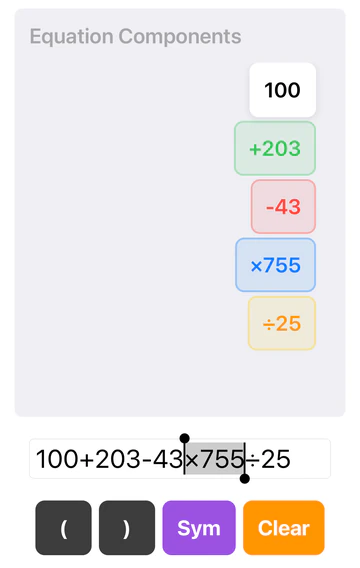
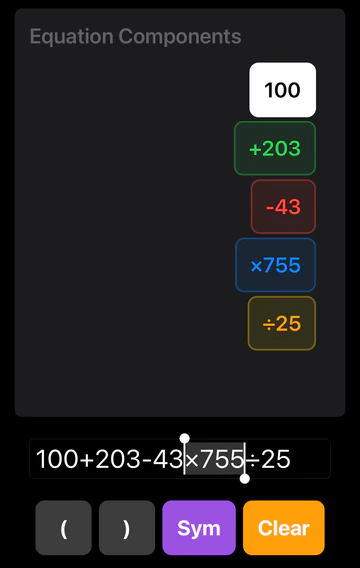
Every number and operator shows up as its own block. Tap one to get two options:
- Delete removes it. This works even while the app is still listening, so you can drop a wrong number and keep talking.
- Edit selects it in the text field so you can type the right value. It appears once you've stopped recording.
You can also type a calculation with the keyboard. The Sym button gives you +, −, ×, ÷ and brackets, so you can mix typing and talking.
If nothing happens when you speak
- Open the iPhone Settings app, scroll down to Simple Voice Calculator, and make sure Microphone and Speech Recognition are both on.
- Check that no other app is using the microphone. A phone call or a voice memo that's recording will block it.
- Speak at a normal pace, a few inches from the phone. Shouting doesn't help. Pausing between numbers usually does.
- Still stuck? Use the App Support link on the App Store page to reach the developer. One reviewer who did wrote that he "replied a few minutes later".
Other languages
The app listens in your iPhone's language if it's one of these: English, German, Spanish, Italian, Korean or Hindi. Other languages fall back to English. Use the normal words for plus, minus and so on in your language. In German, Spanish and Italian, a comma is read as the decimal point, the way you'd write it.
Want to try it first? The online voice calculator on this site works in your browser and understands the same kind of phrasing.
Questions people ask
Do I have to say “equals”?
No. The total updates while you speak. When you’re done, say “stop” or tap the microphone.
Can I say dollar amounts?
Yes. “46.85 plus 20 dollars” works, because dollars, euros, pounds and yen are ignored. Read the cents as a decimal, “forty-six point eight five”, not as “46 dollars and 85 cents”.
Why did 5 plus 3 times 2 give 11?
Multiplication and division are done before addition and subtraction, the same as on a scientific calculator. Say “open bracket 5 plus 3 close bracket times 2” to get 16.
How do I add a percentage to a number?
Say it in full: “80 plus 15 percent of 80” gives 92. “15 percent” on its own means 0.15.
Which languages work?
English, German, Spanish, Italian, Korean and Hindi. The app listens in your iPhone’s language, and in German, Spanish and Italian a comma is read as the decimal point.

Simple Voice Calculator
for iPhone.
Free on the App Store, with no ads. Works on iPhone, iPad and Apple Watch. Rated 4.6 out of 5 by more than 200 people.
More guides
Try and learn
Use it for